How to upload a theme to Shopify: install a zip theme in 5 minutes
A step-by-step guide with screenshots to uploading a custom theme zip to Shopify in 2026, previewing it safely and publishing it without touching your live store.

- Go to Online Store, scroll to your draft themes, click Import, then Upload zip file.
- Choose the theme zip exactly as you downloaded it. Do not unzip it.
- The theme arrives unpublished. Customize it, preview it, then click Publish when you are happy.
Uploading a theme to Shopify sounds technical. It is not. If you can attach a file to an email, you can do this, and your live store stays exactly as it is until you decide to switch. Here is the whole process, with screenshots from the current Shopify admin.
Before you start
- Keep the zip zipped. Shopify needs the theme zip exactly as you downloaded it. If you unzip it and zip it again, the folder structure often changes and Shopify rejects it as an invalid theme.
- Check it is an Online Store 2.0 theme. Every theme on the Shopify Theme Store and every modern theme from a reputable seller is. Sellblocks themes are.
- Nothing you own is at risk. Products, collections, orders, customers and pages are not stored in your theme. Uploading a theme cannot delete them.
Step 1: Open your themes
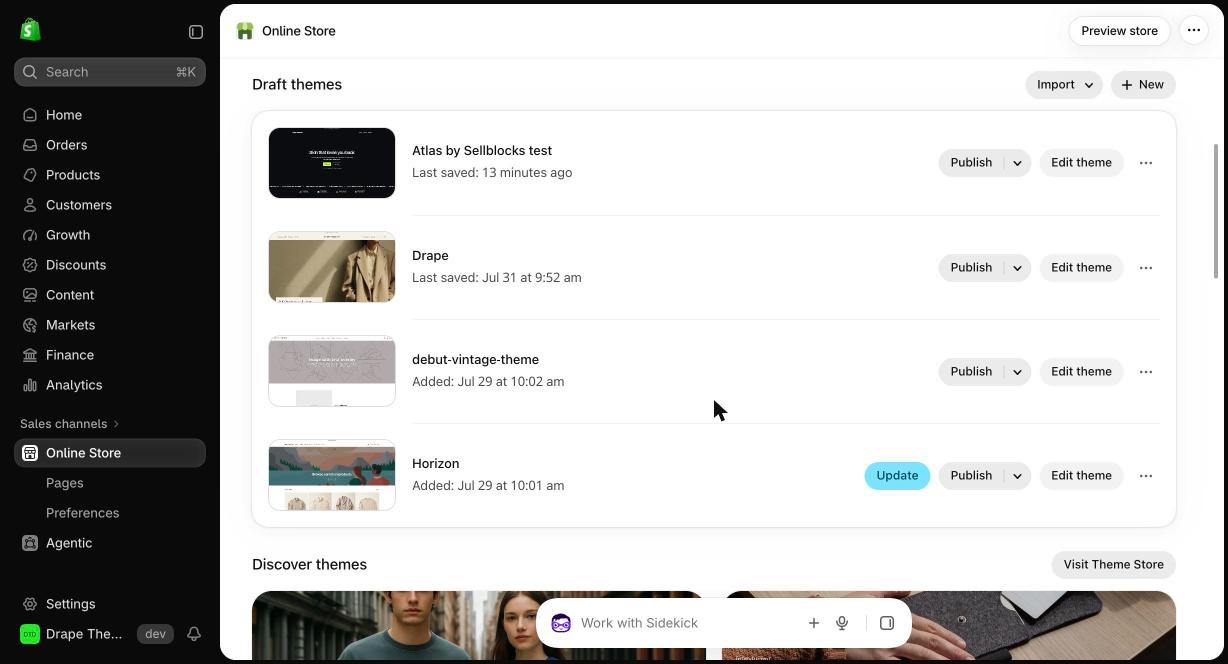
In your Shopify admin, click Online Store in the left menu. You land on the themes page. Your current live theme is at the top. Scroll down to Draft themes.
Step 2: Click Import, then Upload zip file
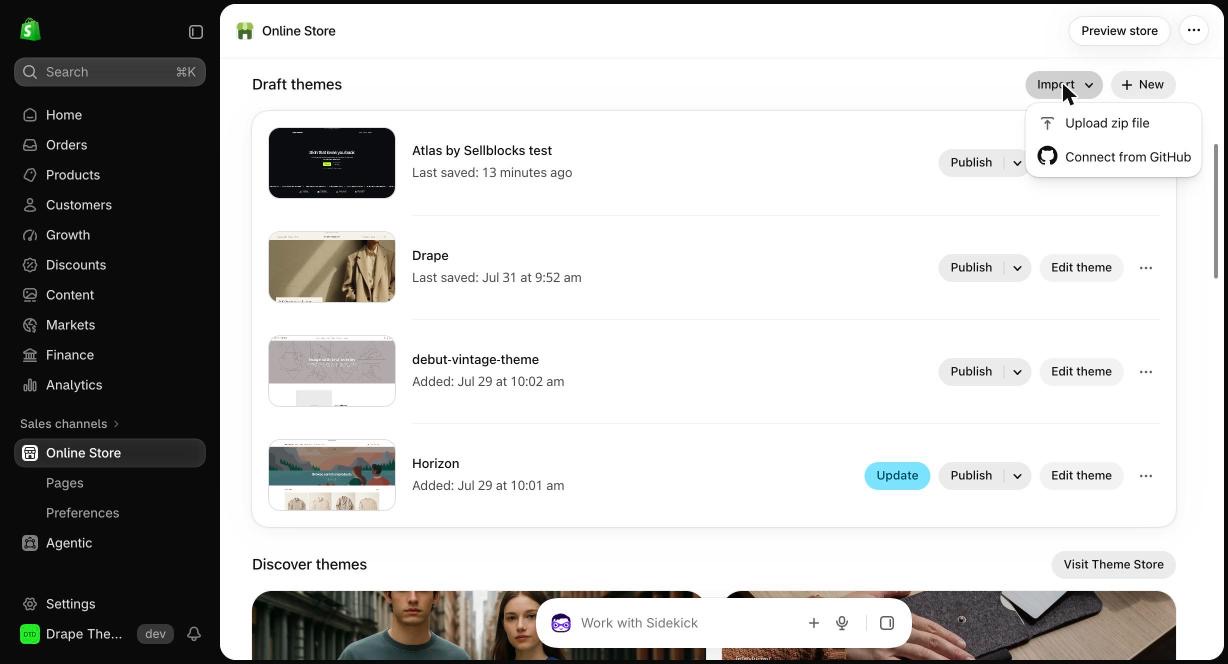
Next to Draft themes, click Import, then choose Upload zip file. Older guides tell you to click "Add theme". Shopify renamed it, so if you cannot find that button, this is why.
Step 3: Choose your zip and upload
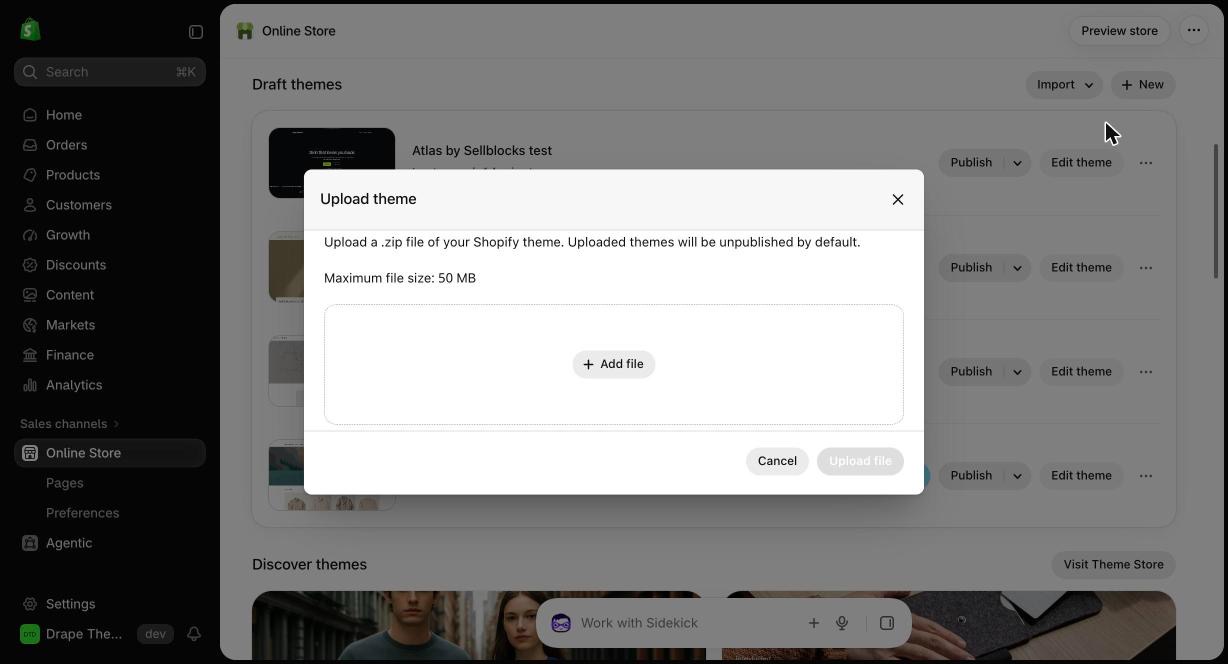
Click Add file, pick your theme zip, then click Upload file. It takes a few seconds. The new theme appears in your draft themes, unpublished, so customers still see your current store.
Step 4: Customize it in the theme editor
Click Customize (or Edit theme) on your new theme. The theme editor opens with a live preview on the right and every section listed on the left.
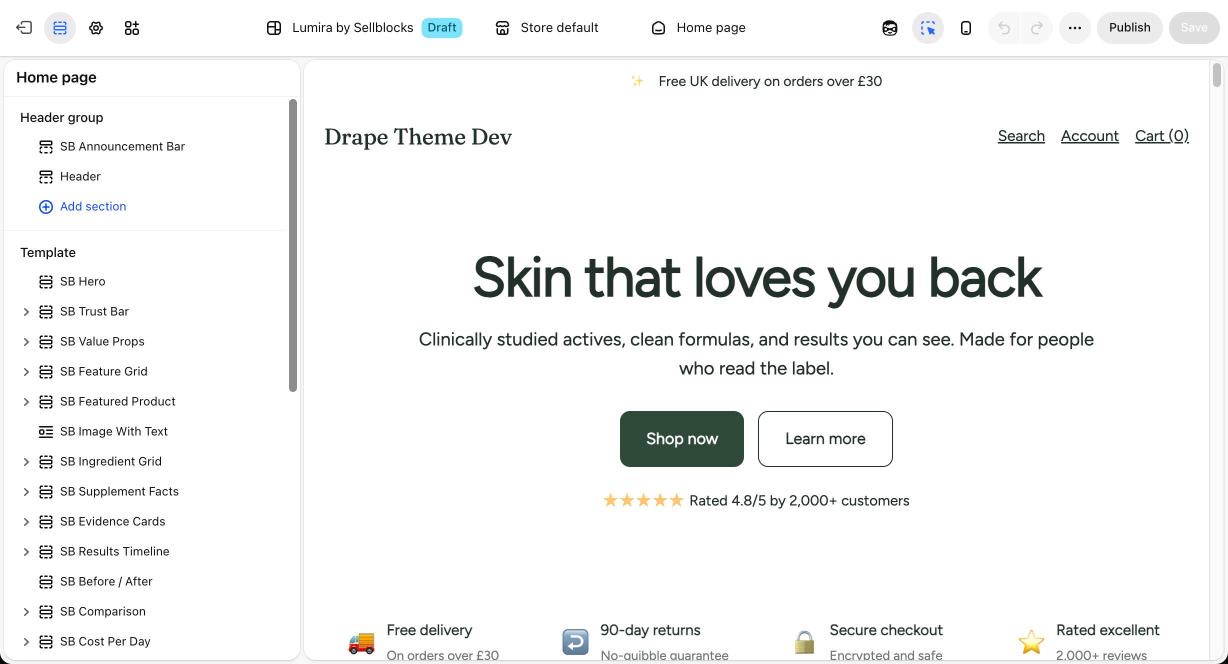
- Edit a section: click it and change the text, images and buttons in the panel.
- Add, hide or reorder: use Add section, the eye icon to hide one, or drag sections into a new order.
- Set your brand: the gear icon opens Theme settings, where you set colors, fonts and page width. Add your logo and menu in the Header section.
- Product pages: use the page picker at the top of the editor to switch to a product template and style it.
Step 5: Preview, then publish
Click around the preview with your real products. When you are happy, click Publish in the top right of the editor. The switch is instant, and your old theme moves to your draft themes, so you can switch back at any time. It is never a one-way door.
If the upload fails
- "Invalid theme" or a missing file error: you uploaded an unzipped folder or a re-zipped copy. Download the original zip again and upload that.
- Theme limit reached: Shopify allows 20 themes per store. Delete a draft you no longer need, then import again.
- Bought a bundle of themes? Some sellers deliver several themes in one zip. Unzip that outer file once, then upload the individual theme zips inside it.
Want a theme that is this easy to install?
Every Sellblocks theme installs exactly this way: one zip, about five minutes, no code and no apps to set up. The conversion sections that most stores pay apps for every month, such as bundles, comparison tables, trust rows and a sticky add to cart, are already inside. You edit all of it in the normal theme editor.
It is a one-time payment with no subscription, and every theme has a live demo you can test before you buy. Our install guide covers the same steps if you want them open in another tab while you work.
Questions merchants ask
Can you upload your own theme to Shopify?
Yes. Shopify lets you upload any Online Store 2.0 theme as a zip file from Online Store, then Themes, then Import, then Upload zip file. It arrives unpublished, so your live store is not affected.
Why does Shopify say my theme zip is invalid?
Usually because the zip was unzipped and zipped again, or the theme files sit inside an extra folder. Upload the original zip exactly as you downloaded it. The zip must contain folders such as layout, templates, sections and config at its top level.
Will uploading a theme delete my products?
No. Products, orders, customers, pages and blog posts belong to your store, not your theme. A theme only changes how the store looks.
How many themes can a Shopify store have?
Up to 20 themes in the theme library. If you hit the limit, delete a draft theme you no longer need and import again.